
Satar Refes 4PCS Round Mesh Metal Pencil Holder, Metal Pen Holders Desk Organizer Mesh Pen Pot P
£8.59
View on Amazon →
Published 16 September 2026 · updated 2026-09-16 · by OwnShop UK
Most people overspend on a stylish chair and scrimp on the desk — then wonder why their neck aches by mid-afternoon. A budget home office that actually works starts with desk depth and chair adjustability: get those right and everything else is optional.
The home office market is full of products designed to look ergonomic rather than function ergonomically. Sit-stand desks, monitor arms, LED bias lighting and cable management kits all have their place — but none of them compensate for a desk that is too shallow or a chair that cannot adjust to your body.
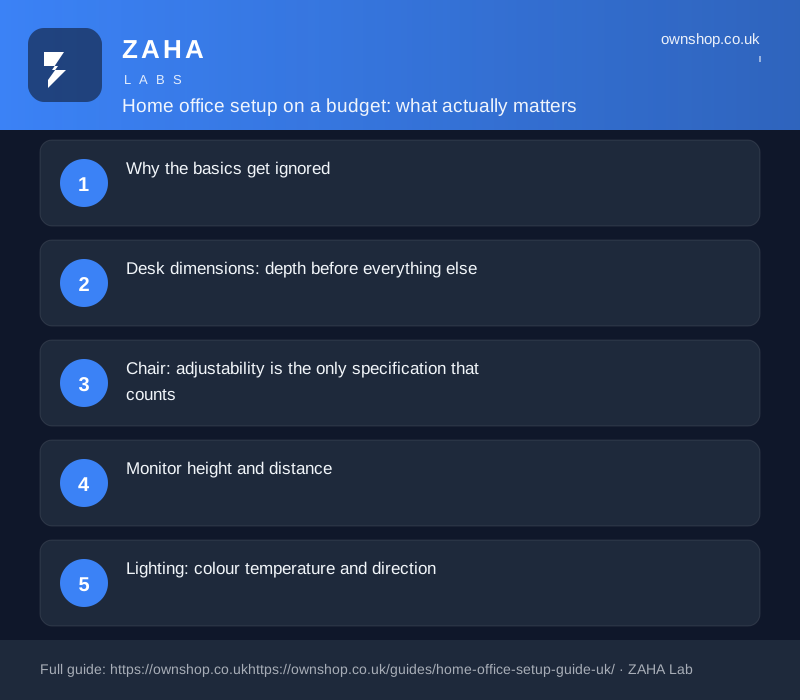
Spending is most effective in this order: desk dimensions, chair adjustability, monitor position, lighting, then cable management. Everything else is secondary.
The single number that matters most is desk depth — measured from the front edge where your wrists rest to the back edge where your monitor sits. Aim for at least 60 cm of usable depth. Anything under 55 cm forces the monitor too close, which rounds your shoulders and strains your eyes simultaneously.
Height matters differently. For most adults, a fixed desk between 72 cm and 75 cm suits seated keyboard use. If you are outside that range, raising your chair and adding a footrest is a cheaper fix than buying a height-adjustable desk at this budget level.
Sit-stand desks have genuine long-term ergonomic value, but good ones cost significantly more than a fixed desk. At lower price points, many height-adjustable desks wobble noticeably once a monitor is placed on them. On a tight budget, a solid fixed desk with a thick top — at least 18 mm for particleboard — is a more honest trade-off than a shaky standing desk.
Four-corner leg desks are almost always sturdier than designs with two central legs under a floating top. If the product listing shows legs positioned well inward from the corners, search reviews specifically for wobble complaints before buying.
A chair can look purpose-built for office work and still be useless for anyone taller than average or shorter than average. What adjustability means in practice comes down to two controls: seat height and lumbar support.
Seat height should allow your feet to rest flat on the floor while your thighs sit roughly parallel to it. Lumbar support — a firm, height-adjustable curve pressing into the small of your back — is what keeps your spine from collapsing into a C-shape after an hour. Many budget chairs include a separate lumbar cushion that clips onto the back; this works if it is height-adjustable, but is nearly useless if fixed in the wrong position.
Armrests are worth having if they are height-adjustable. Fixed armrests that do not match your desk height push your shoulders upward all day. Most chairs allow armrests to be removed — if they are fixed and awkward, take them off rather than working around them.
Headrests are largely irrelevant for standard desk work: you should not be reclining far enough for them to engage. Seat tilt tension is a reasonable bonus. Memory-foam cushioning at budget price points compresses within a few months of regular use.
The bucket-seat styling is designed to evoke motorsport ergonomics, not office ergonomics. Rigid bolstered sides restrict hip movement, and many models lack genuine lumbar adjustment. Reviewers frequently report discomfort after two or three hours of desk work. A plain mesh task chair with height-adjustable lumbar is almost always the better choice at the same price point.
The top edge of your monitor should sit at or fractionally below eye level, so your neck rests in a neutral position — not tilted upward or craned down. Most monitors on their factory stands sit too low for the majority of users. A monitor riser, a stack of hardback books, or a shelf achieves the same result without additional spend.
Distance follows screen size and font preference. A reliable starting point is arm's length: sit in your normal working position, extend your arm, and your fingertips should almost touch the screen. For a 24-inch monitor this typically falls between 55 and 65 cm. If you find yourself leaning in to read, increase your font size rather than moving the screen closer.
| Ergonomic checkpoint | Target range | Most common mistake |
|---|---|---|
| Monitor top edge | At or slightly below eye level | Screen too low on stock stand |
| Monitor distance (24") | 55–65 cm | Too close, causing neck tension |
| Keyboard-to-desk-edge gap | 10–15 cm in front of keyboard | Keyboard pushed to the back |
| Chair seat height | Feet flat, thighs parallel to floor | Set too high, feet dangling |
Position your primary monitor directly ahead and the secondary screen slightly off to the side of your dominant eye — not split equally side-by-side. An equal split forces your neck to rotate toward one screen for half the working day, which compounds into shoulder tension over weeks.
Poorly considered lighting causes squinting and eye fatigue that accumulates across a day without announcing itself. Two variables matter: colour temperature and where the light comes from.
For focused work, a desk lamp or overhead fixture in the 4000 K–5000 K range (labelled cool white or daylight) reduces the contrast strain between a bright screen and a dim room compared with warm-white bulbs. For video calls, position your primary light source in front of you — a window or lamp directly behind your head silhouettes your face on camera regardless of how bright the room feels to you.
Natural daylight is the best option when available. Sit facing the window or at 90 degrees to it. Sitting with a window directly behind your monitor creates glare across the screen and forces you to squint at reflections throughout the day.
A desk lamp with an adjustable arm, a daylight bulb, and a built-in USB charging port works as workspace lighting, a video call key light, and a phone charger in one item. It is a compact consolidation worth looking for at this price tier.
Tangled cables slow down desk reconfiguration and gradually stress the connectors on laptops and monitors. Practical cable management at low cost works in layers.
Velcro cable ties are the cheapest and most flexible starting point. Unlike zip ties they can be resized as your setup changes and do not damage cable jackets over time. Buy a pack and use them generously.
Under-desk cable trays keep power strips and cable bundles off the floor. Mesh or open-tray designs are preferable to closed tubes — they are easier to modify and do not trap heat around power supplies.
Adhesive cable channels are useful when a cable travels a fixed, predictable path along a wall or desk edge. They work best for runs that rarely change, since re-routing is fiddly once the adhesive has set.
The aim is not a photogenic zero-cable desktop. It is cables that do not snag, pull, or dangle across your legs during a working day.
Most desk accessories exist to be sold. The short list of items with a measurable daily return:
An external keyboard and mouse, even inexpensive ones, allow you to position your input devices at the correct height independent of your laptop screen. Without them, laptop users face a constant trade-off: either the screen is at the right height or the keyboard is — not both.
A firm wrist rest for keyboard use reduces contact pressure on the underside of the wrists during long typing sessions. Firm is the key word here — soft gel rests cause more wrist extension than they prevent.
A document holder positioned beside your monitor at screen height eliminates the repetitive head-drop-and-refocus when transcribing from paper notes or a second device. Over a long day, this small reduction in repeated movement adds up.
Physical notes — a small whiteboard, sticky notes, index cards — remain more cognitively immediate than any digital alternative for capturing a thought mid-task without switching context or picking up your phone.
Monitor arms are genuinely useful but not essential if your desk depth and a riser already place your monitor at the correct position. Prioritise the desk and chair first; add a monitor arm later if you feel the need.
Large cable boxes that encase a power strip look tidy but trap heat, restrict airflow around power supplies, and make adding or removing a cable inconvenient. A cable tray under the desk does the same concealment job more practically.
Desk mats are pleasant to use but provide no ergonomic or functional benefit. If the budget is the constraint, skip them entirely.
Under-desk movement gadgets — pedals, ellipticals — sound appealing but introduce repetitive motion that competes with concentrated work. The evidence for their benefit during focused tasks is not strong enough to justify the spend at this stage of a setup.


The minimum useful desk depth is 60 cm, measured from the front edge to where the monitor sits. Below 55 cm it becomes nearly impossible to place a screen at arm's length, which forces it too close and causes both eye strain and rounded shoulders over a working day. If you are already using a shallow desk, pulling it away from the wall and using a monitor riser are two low-cost adjustments before replacing it.
Prioritise two adjustments above everything else: seat height, so your feet rest flat on the floor with thighs roughly parallel to it, and lumbar support — a firm, height-adjustable curve pressing into the small of your back. Everything else, including headrests, memory foam and tilt tension, is secondary. Avoid gaming-style bucket seats, which often lack genuine lumbar adjustment despite their ergonomic appearance and typically feel uncomfortable after a few hours of desk work.
For desk work, aim for a bulb or lamp in the 4000 K to 5000 K range, labelled cool white or daylight. This range reduces the contrast between a bright screen and a dim room, which is the main driver of end-of-day eye fatigue. Warm white bulbs around 2700 K are fine for living spaces but make focused screen work harder over long periods, particularly in rooms without much natural light.
Not necessarily. A monitor arm is most useful when your desk is too shallow to position the screen at arm's length, or when you switch frequently between sitting and standing. If your desk is at least 60 cm deep and a riser gets the screen to eye level, an arm is a convenience rather than a necessity. Spend the money on the desk and chair first — a monitor arm is a useful later upgrade, not a day-one essential.
As an Amazon Associate we earn from qualifying purchases. Prices and availability are accurate as of the date shown and are subject to change — the price on Amazon at checkout is the one that applies.

A practical budget gift guide for toys and games: what a tenner covers, when £20 hits the sweet spot, and how to spend £30 on gift
Build a home office that actually works without overspending. Covers desk depth, chair adjustability, monitor height and lighting
Learn how Amazon's 'was' prices really work, when Prime Day deals are genuine, and the three checks every UK shopper should run be